In this article:
If you use Safari browser to access our app, the official Moqups for Safari extension will add the following functionality and features:
- Convert Web pages to Moqups selection
- Capture Screenshots to the Library
- Enable Eyedropper for Color Picker
- Create Projects and Jump to Moqups
In this article, you’ll learn how to install the extension in Safari, and how to use the extension’s features.
Install the Moqups extension
- Visit the Apple App Store and search for Moqups
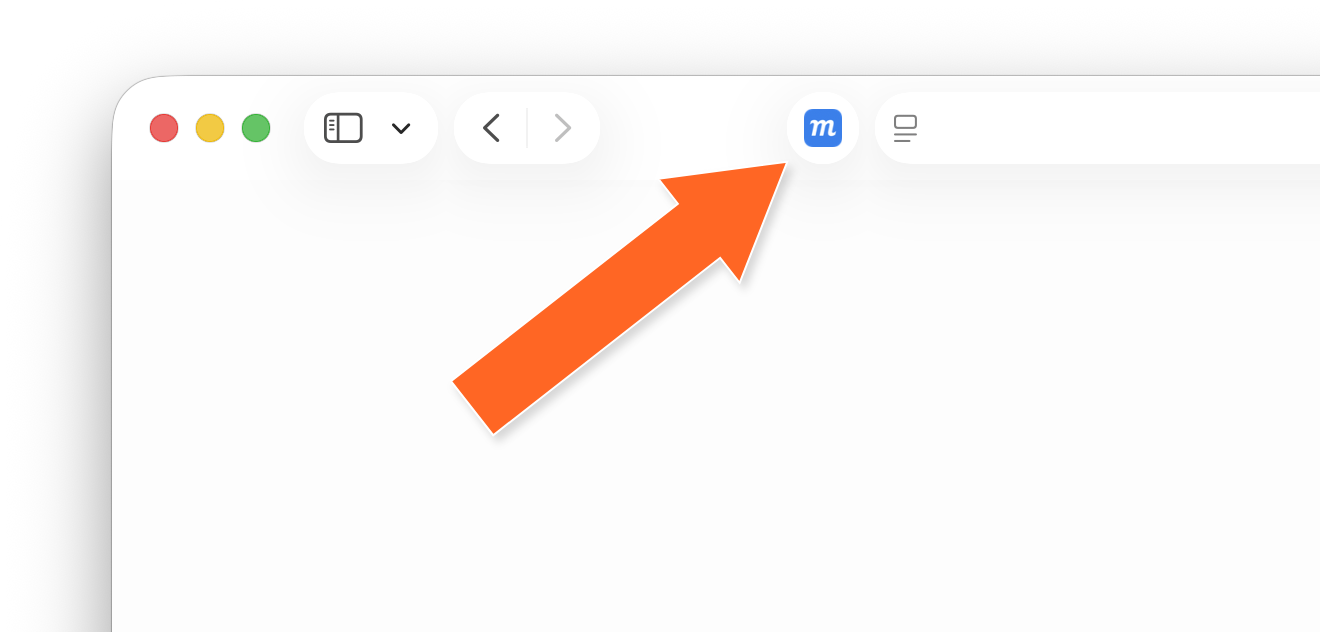
- After installing the extension, the blue Moqups button will appear to the right of the browser's address bar.
- To enable the eyedropper, you’ll need to refresh any tabs that have the Moqups app currently open.
Turn live webpages into editable layouts
You may want to work with mockups of live webpages for a variety of reasons – updating and maintaining existing pages, creating new pages that match the design of what's already published, or customising repeated elements across large internal hubs and back-office sites.
The Moqups extensions lets you bring whole webpages or selections into Moqups. The designs come in as fully editable layouts – with each element separated for easy selection and customization.
And options let you use the page's high-fidelity design, or convert that layout into a lo-fi wireframe. You can also import the current window or adjust the layout to desktop, laptop or phone viewports.
To convert a live webpage into an editable mockup:
-
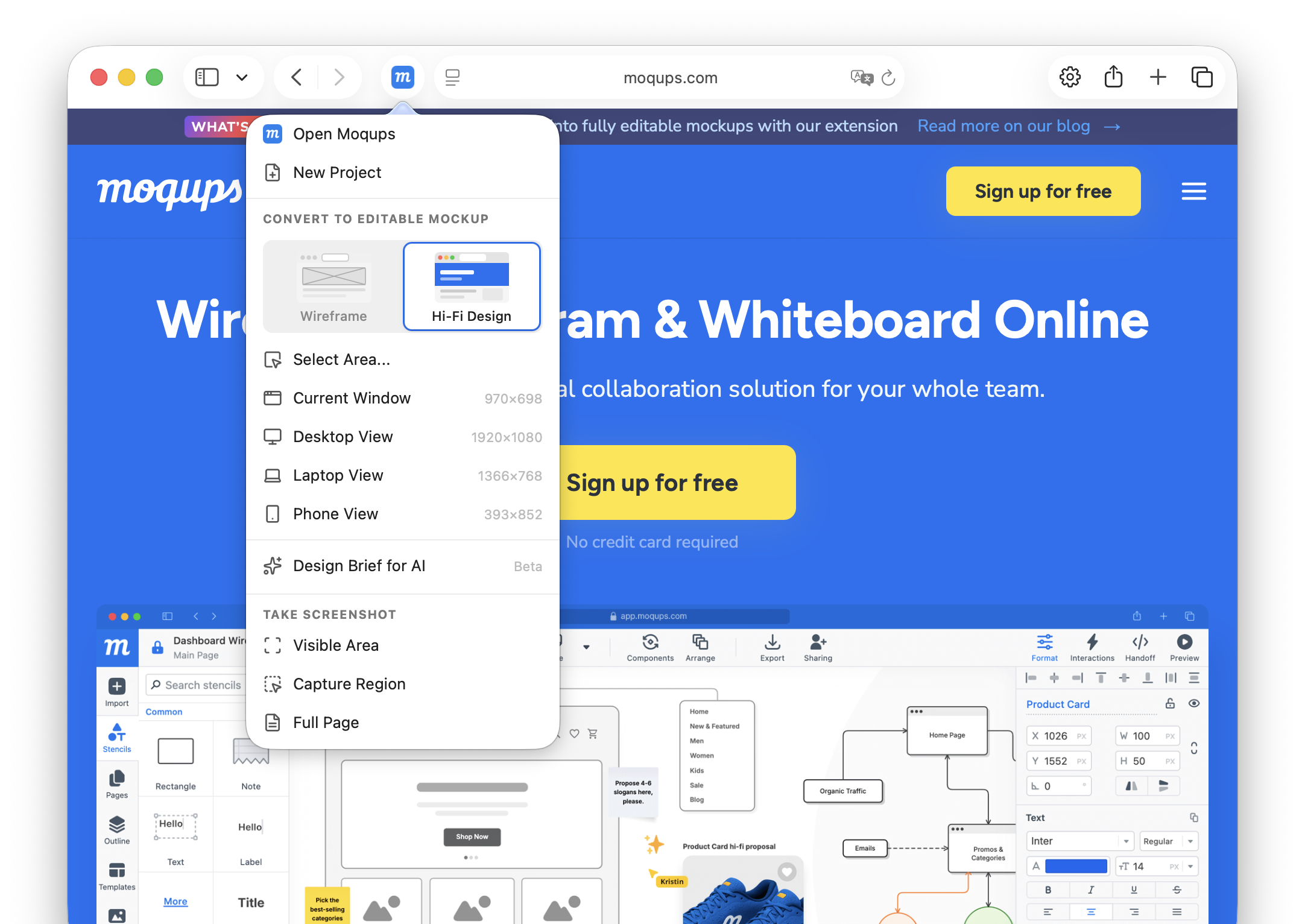
Click the Moqups extension icon in the toolbar
-
Select Hi-Fi Design
-
Choose from…
- Select area to convert part of a page or individual elements
- Current window to convert the entire page
- Desktop, Laptop, or Phone View options to adjust the layout to those viewports
-
In the Selection ready Pop-up…
- Click the Copy to clipboard button to paste the layout into an open Moqups project
- Click the Open in Moqups button to create a new project from the layout
Convert hi-fi webpages into lo-fi wireframes
As well as importing webpages in full fidelity, you can also turn them into grayscale, low-fidelity wireframes. Stripping away the colors and styling can help put the focus on the page's layout, structure and content. This is useful when you want to compare the underlying structure of different pages, experiment with alternative design solutions, or start from a visual blank slate during a rebrand.
To turn a hi-fi webpage into a lo-fi wireframe:
-
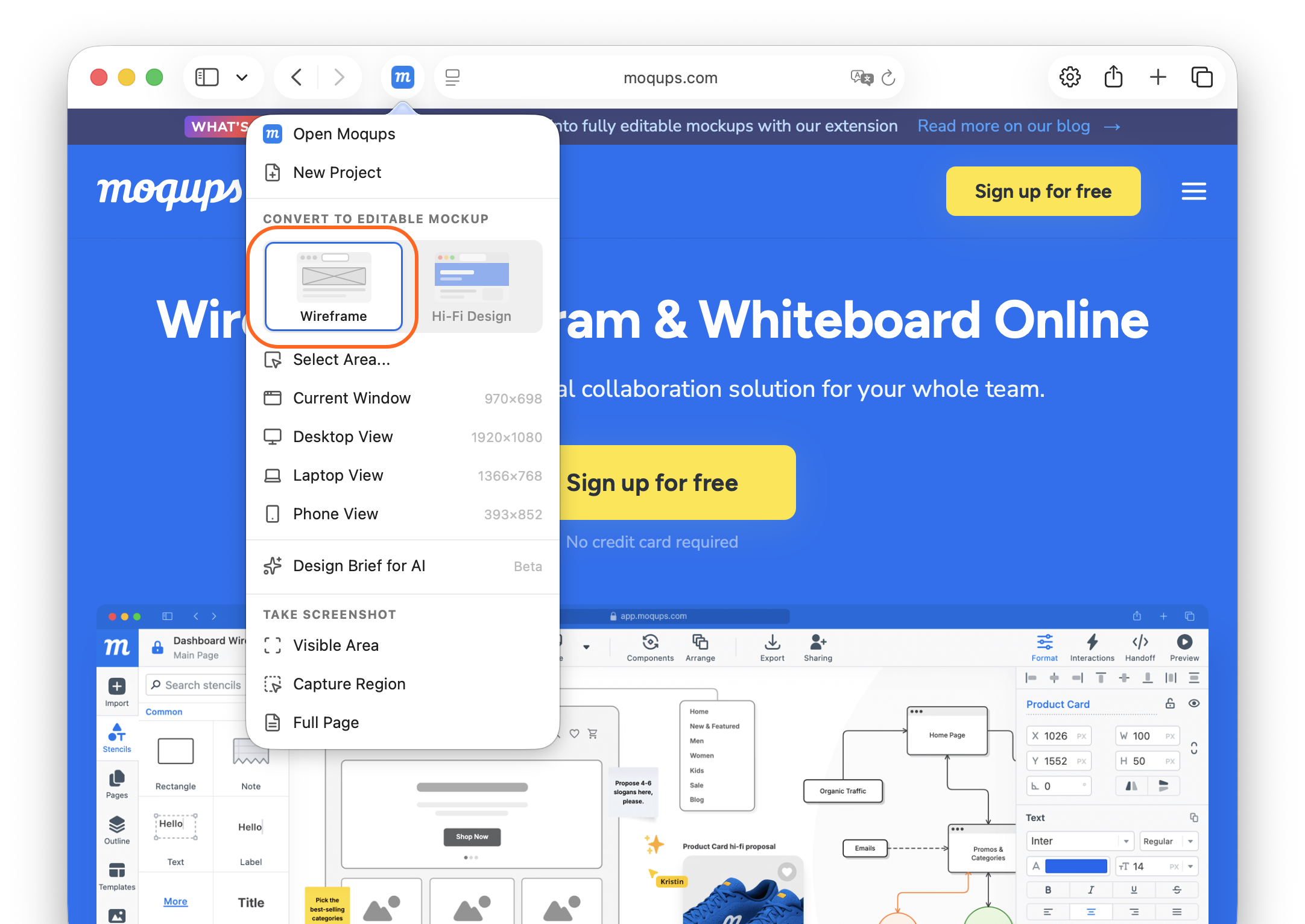
Click the Moqups extension icon to the right of the browser’s address bar.
-
Select Wireframe
-
Choose from…
- Select area to convert part of a page or individual elements
- Current window to convert the entire page
- Desktop, Laptop, or Phone View to adjust the layout to those viewports
-
In the Selection ready Pop-up…
- Click the Copy to clipboard button to paste the layout into an open Moqups project.
- Click the Open in Moqups button to create a new project from the layout.
Generate a design brief for AI
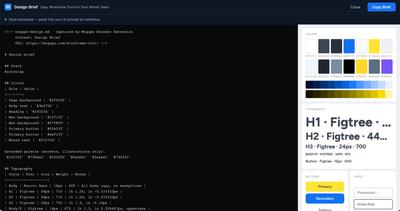
This is a great tool if you’re working with AI and want to give it your branding guidelines. It extracts the style from any browser window to generate a design brief. You can then paste the brief into your AI prompt so it knows what branding guidelines – colors, typography, button and input style – to use as a reference for any new design generation.
Take screenshots
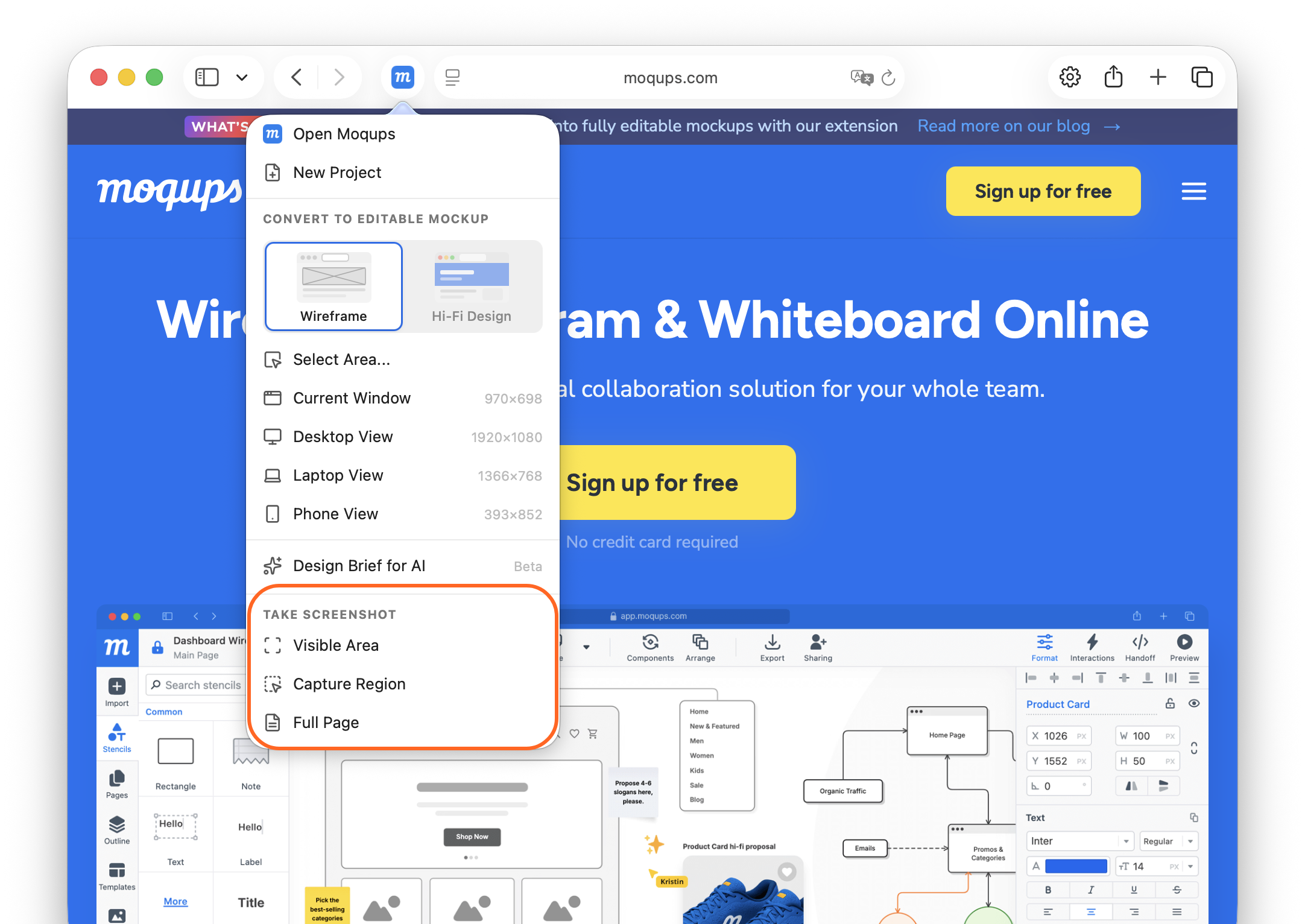
With the extension, you can grab the visible area of a website, a specific selection, or an entire page – and add those shots instantly to your Team Images library. This saves time when you’re putting together a mood board, looking for inspiration, doing competitor research, or creating quick mockups.
To take screenshots:
-
Click the Moqups extension icon to the right of the browser’s address bar.
-
Select one of the Take Screenshot options:
- Visible Area will capture only what’s currently visible in your browser window
- Capture Region will let you click and drag to choose a specific part of the window
- Full Page will grab the entire webpage
-
Your screenshot will open in a new browser tab; here, you can use it directly to your Moqups project – or cancel if you want to try again!
Enable the eyedropper
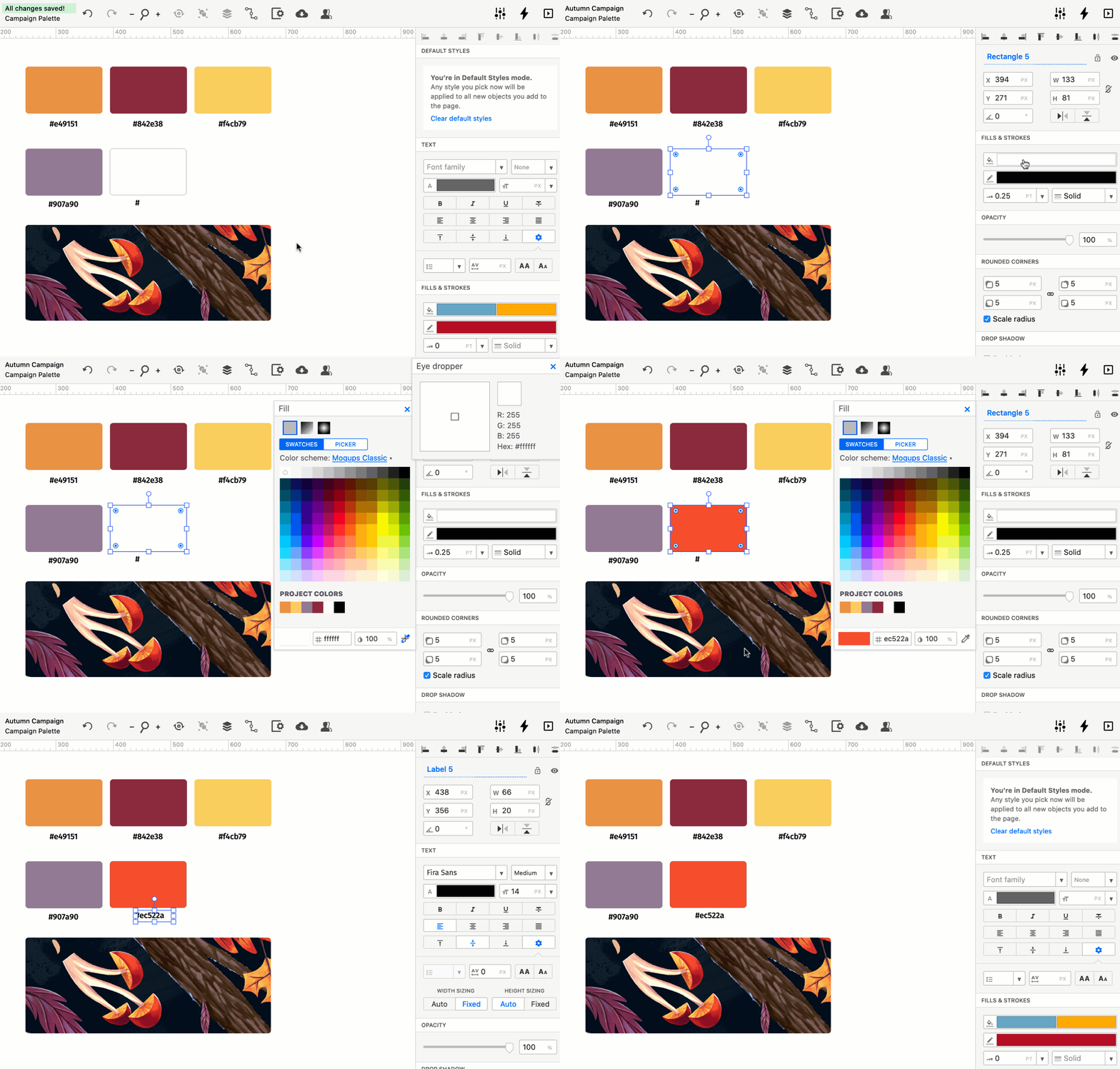
Our Safari extension also enables our app’s eyedropper – so you can target any color on the page, and apply it instantly to your design elements.
Installing the extension – and refreshing any open Moqups tabs – will automatically activate the eyedropper. You’ll find the eyedropper icon in the Format Panel’s color picker.
To use the eyedropper to pick colors:
- Click the eyedropper icon to open an inspector window in the upper-right corner of the screen.
- As you move the crosshair-cursor around the page, the window will display a close up view of the pixels beneath, as well as both their RGB and Hex values.
- Click to select the color beneath the cursor.
Create projects and jump to Moqups
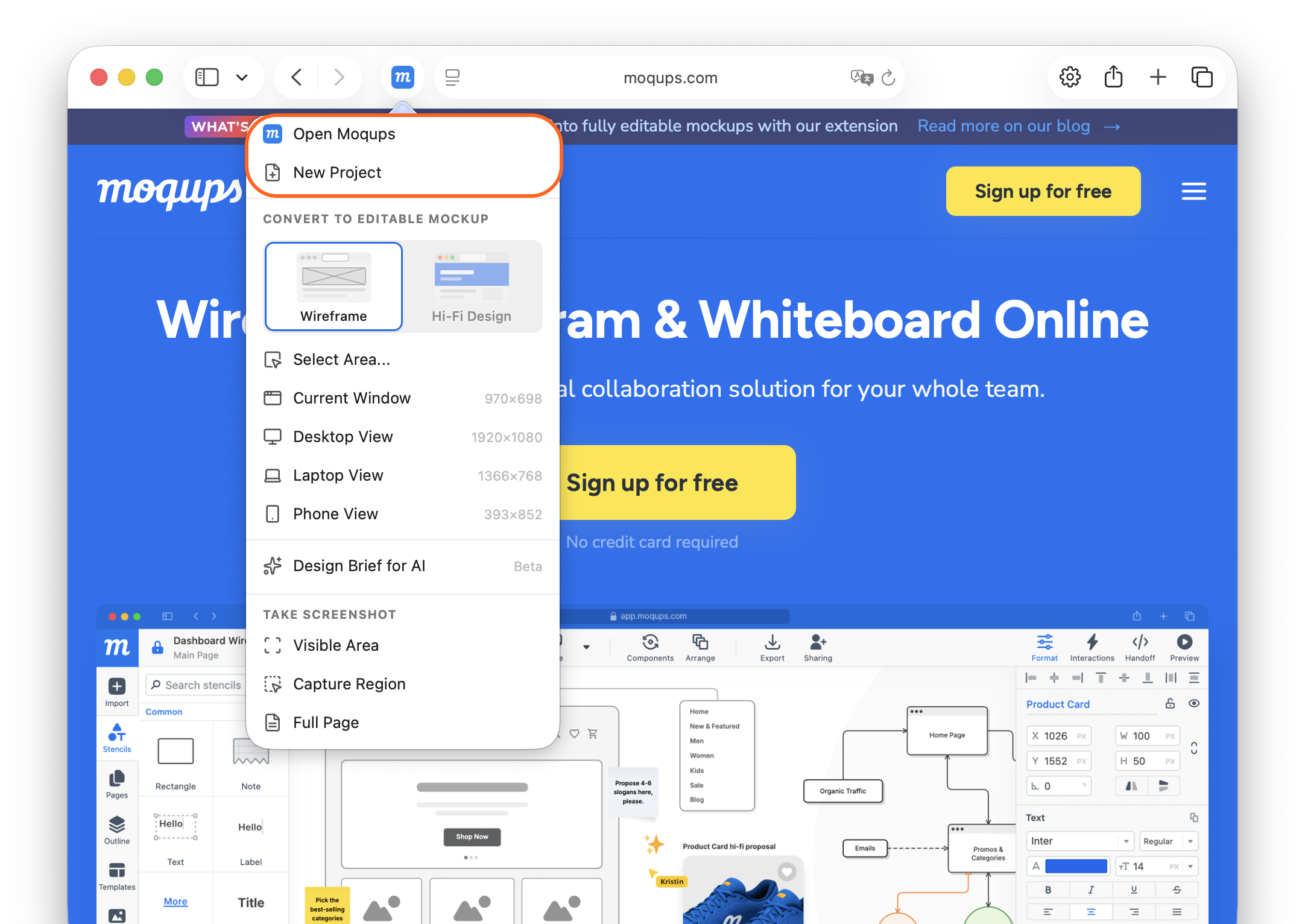
You can instantly create a new project, or go right to your account's Dashboard, by hitting the Moqups button in the top-right corner of your browser.
This is particularly useful when you are jumping between multiple tabs in the browser – or taking screenshots to build mood boards, mockups, and storyboards.
Questions and answers
Why does the eyedropper only work if I am using a browser extension?
To provide all these features – including the eyedropper – we chose to rely on the browser extensions for both technical and security reasons. For a full explanation of this choice, and the reasoning behind it, check out our blog post.
Is this extension available for other browsers?
Right now, our extension is available for Safari, Firefox and Chrome – and Brave users can install the Chrome version.