Moqups MCP Server
Add AI to your team so it can create, analyze, and edit wireframes, diagrams, and whiteboards – and even turn your designs into code.
Available on all paid plans
Create a landing page hero for Plannevo, our team planning app. Keep it clean and add a free trial button.
Sure. I’ll add a navigation bar, a headline with two buttons, and a product image.
- Add the navigation bar
- Add the product image
- Write the headline and buttons
- Check spacing and alignment
Using Moqups: add objects
The best of both worlds: Moqups and AI
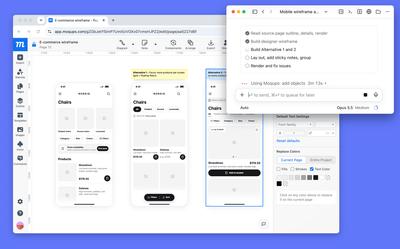
Take wireframes further and faster with AI
A wireframe can show AI what you want faster than a long text prompt. And because AI can read your whole project – notes, requirements, diagrams, and feedback – it starts with the full context.
- Generate wireframes from your notes
- Turn wireframes into branded, high-fidelity designs
- Read stakeholder comments and update designs
Map processes and find the gaps
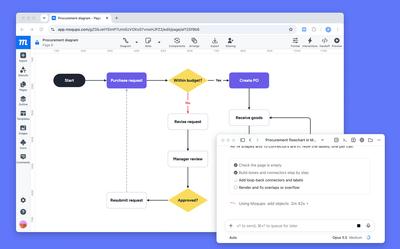
From user flows to database models, diagrams show how everything connects. AI can build these diagrams from your notes, then check them for accuracy and gaps.
- Create flowcharts, sitemaps, and ERDs from notes
- Flag dead ends, missing steps, and edge cases
- Generate database code from an ERD
Turn brainstorms into next steps
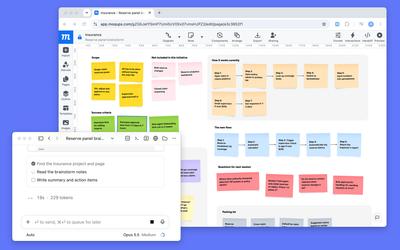
After sprints or workshops, AI can help your team make sense of the session by summarizing and categorizing what's on the board, so nothing gets lost.
- Pull out decisions and create action items
- Create retro boards and user journey maps
- Create decision trees by sequencing choices and options
Set the direction and let AI deliver.
A short prompt is often all AI needs to produce layouts, versions, code, and summaries. Copy the prompts below to try them in your projects.
Go from lo-fi to hi-fi
Turn a wireframe into a polished design in your brand's colors and fonts.
“Turn this wireframe into a hi-fi design in our brand colors.”
Explore variations
Get alternative layout options to compare side by side before your team decides.
“Create three layout variations of this wireframe.”
Mobile and dark mode
Adapt a desktop layout to mobile, or try your designs in dark mode.
“Make a mobile version of this desktop screen.”
Make it clickable
Turn screens into interactive prototypes that you can click through in your browser.
“Turn these screens into a clickable prototype.”
Generate handoff code
Turn your wireframes and designs into front-end code for your developers.
“Turn this wireframe into a React component.”
Export to Mermaid
Convert flowcharts and other diagrams into Mermaid code for use in other tools.
“Convert this flowchart to Mermaid code.”
Cluster and summarize
Group sticky notes by theme, then sum up the session in a few lines.
“Group these sticky notes by theme and summarize them.”
Add realistic content
Replace placeholder text with realistic names, prices, and copy, then proofread it.
“Replace the placeholder text with realistic content.”
“We believe the best design ideas come from humans. Moqups is where you shape and refine those ideas. With everything in one place, AI can join in without extra skills, context, or plugins. It should feel as natural as working with your team.”

How it works
MCP (Model Context Protocol) is an open standard that connects your AI tool to Moqups. Here's what happens when you ask for something.
-
You ask your AI tool
Describe what you need in plain words, just like a chat.
-
MCP connects to Moqups
The Moqups MCP Server lets your AI tool work in your projects.
-
Your project updates live
Changes appear in Moqups right away, ready for your team to refine.
Connect in minutes
Paste this prompt into your AI tool, and it will help you connect to Moqups.
Help me connect Moqups using the MCP Server URL https://api.moqups.com/mcp. Once it's connected, show me what you can do in my Moqups projects.
1 Add Moqups
Paste the prompt above, or add the server URL as a custom connector.
2 Allow access
Sign in to your Moqups account and allow access when prompted.
3 Start prompting
Ask your AI tool to list your Moqups projects to check that it works.
Frequently asked questions
What is MCP?
MCP (Model Context Protocol) is an open standard that lets AI tools connect directly to apps like Moqups. Once connected, your AI tool can read and edit your projects on your behalf.
Why use Moqups with your AI tool?
In Moqups, your wireframes, diagrams, and whiteboards sit together in one project, so your AI tool has the full context. For example, it can read requirements on a whiteboard, map them out in a diagram, and build wireframes from them – all in the project that your team is already collaborating on.
Which AI tools can I use?
Any AI tool that supports MCP connections, such as Claude, ChatGPT, Antigravity, VS Code, and Cursor. Some AI tools only offer custom connectors on certain plans or need an admin to add them.
Can I use the MCP Server on the Free plan?
No, the MCP Server is only available with paid Moqups plans.
Is the MCP Server suitable for teams and enterprise workflows?
Yes. The MCP Server is hosted by Moqups, so there's nothing to install. AI works with the same access and permissions as the person who connected it, and it reflects their role on the project. The changes AI makes appear in real time for the whole team.
How do I disconnect my AI tool?
Connected AI tools are listed in the Integrations tab of your Moqups Dashboard, and you can disconnect them from there at any time. You can also remove the connector from your AI tool’s own settings.
Do I still need the Moqups extension?
The extension does things the MCP Server doesn't. You can use it to turn live webpages into editable layouts, take screenshots, generate design briefs, or bring AI designs into Moqups without connecting your AI tool via MCP.
Ready to add AI to your team?
Connect your AI tool in minutes, and put it to work in your Moqups projects.