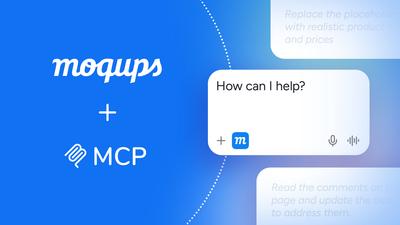
We've just released our MCP Server, allowing tools like Claude, ChatGPT or Cursor to work directly inside your Moqups projects.
MCP stands for Model Context Protocol, an open standard that lets AI connect to an app like Moqups. Once you connect your choice of AI tool, it will be able to read and write your Moqups projects: it can search, organize, analyze, create, edit and iterate on content within Moqups, and can use your Moqups projects as both the context and the starting point for its own work. This opens up endless possibilities.
If you already know what MCP servers can do, and just want to connect to ours, here’s the URL https://api.moqups.com/mcp and a Help article with instructions on how to connect. Otherwise, read on!
- Get the best of both worlds: Moqups and AI
- AI for wireframes and mockups
- AI for diagrams and flowcharts
- AI for whiteboards and frameworks
- Decide together in Moqups
- Connect to our MCP Server
- Not ready to connect?
Get the best of both worlds: Moqups and AI
Start with Moqups
Moqups is a great tool for thinking about a product and having discussions about its purpose. It’s a collaborative space where your team can brainstorm ideas, frame the task, decide on goals and scope – and then sketch out what that looks like and how to make it happen.
That may take the form of wireframes, diagrams, or notes about requirements. Because everyone can see the work and comment on it, it’s also where you make sure you’re solving the right problem, and that your solution actually solves it.
The same work that keeps your team aligned also gives AI what it needs to do its best work. Two of the most common problems with AI are misunderstanding and lack of context. The more you can tell AI about your product – its intent, shape, details, requirements and constraints – the better and faster it can work. And it produces much better results when it’s guided by your own team’s expertise, taste and judgment.
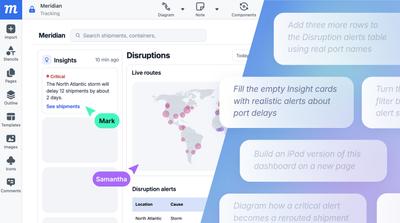
Put AI to work
When AI joins a Moqups project, it joins a conversation that your team has already started, and it can help in two main ways.
The first is to work alongside your team within Moqups. Like any new teammate, AI can take on whatever needs doing: it can search and analyze your projects, proofread text, edit and iterate on designs, and sort and organize the notes on your whiteboards. Some of that is the slow, repetitive work that most of us would rather not do by hand. But some of it – like taking a rough wireframe to a polished, hi-fi design, or exploring three different directions for a layout – is creative work in its own right, and it can give your team some quick options to react to, or refine.
The second is to take your work beyond Moqups. A quick wireframe can become the starting point for an AI-generated design, a clickable prototype you can open in your browser, or handoff code for your developers, each one building on the decisions your team has already made, and the consensus they've built.
If you're new to using AI in projects, an easy way to start is by asking questions. Because AI can read and search your projects, it can find the things you'd otherwise hunt for by hand, like which pages still say 'Try now' instead of 'Try for free', where old pricing still lingers, or where your team can find the latest roadmap. But that's just the beginning! There's a lot more that it can do, so here are a bunch of ways you might want to use AI in your workflow.
AI for wireframes and mockups
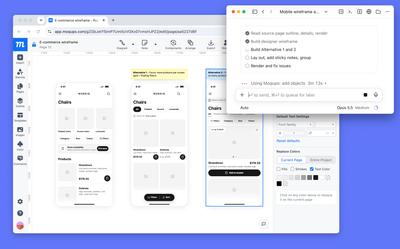
If you want your AI to generate a design, it can be faster to mock up a quick wireframe to explain, at least, the rough outlines of your concept. Giving the AI a visual reference is often easier than writing it out as a text prompt.
And, from that single wireframe, AI can produce quick variations in the layout, so your team has options to compare and evaluate side by side. It can also take a low-fidelity wireframe to a hi-fi design with branded colors and fonts, create a mobile version of a desktop screen, or provide a dark mode theme for your UI. And because it can read the notes and requirements your team has left on the page, it can apply them to your design without you having to repeat them in a prompt.
AI can also take care of smaller, tedious jobs – like changing the wording on every 'Submit' button, renaming a set of pages, or swapping a color across multiple screens – making those edits directly in your project. Then, when your team has signed off, it can turn designs into clickable JavaScript prototypes that you can open in the browser to share with stakeholders, or generate code to hand off to your developers.
AI for diagrams and flowcharts
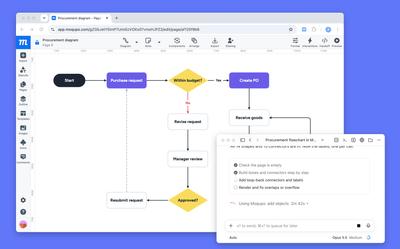
AI can build new diagrams from your meeting notes, whether that's a flowchart, a sitemap, or an ERD or UML diagram. Once a database diagram is finished, it can generate the code to build that database, and it can convert any diagram to Mermaid code for your documentation.
It can also review diagrams that your team has already made. For instance, if you ask AI to check a flowchart, it can follow every branch to flag the dead ends, missing steps, and edge cases that are so easy to overlook – like a sign-up flow with no path for a forgotten password, or a checkout that has no way to alert users when their payment fails.
AI for whiteboards and frameworks
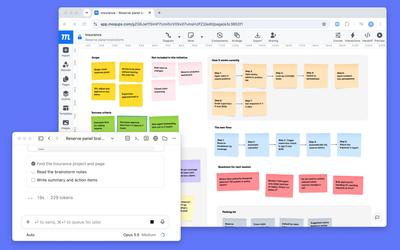
After brainstorming or sprints, AI can help your team make sense of what's on the board. It can search, sort, and cluster the sticky notes by theme, summarize the session, and create both action items and to-do lists.
It can also set up boards and frameworks for your next session, and then tailor them to your team. Because AI can read your entire project, it can shape a standard framework around what's already there – a retro board organized around the goals from your last sprint, or a user journey map built from your own personas and the actual stages of your product.
And when making decisions gets complicated, AI can create decision trees from the meeting notes so your team can see the trade-offs at each step.
Decide together in Moqups
AI can contribute a lot to a project, but Moqups gives you and your team the space to make the final decisions. Our app offers a great venue for feedback loops, where you can get constructive input right on the design.
Because AI works directly in your projects, its changes appear as they're made, so anyone who has the project open can see them, discuss them, refine them, or discard them. AI can also read the comments your teammates and stakeholders leave; that means it could summarize the feedback on three competing designs, or update a wireframe based on what reviewers have said. It can read comments, but it can't post them.
Here are a couple of tips that might help you as you get started. On bigger tasks, it's often easier to ask for one change at a time and check each result before moving on. And because our own Undo doesn't apply to changes made by AI, it's worth duplicating your project before asking for anything large.
Connect to our MCP Server
Moqups is now listed in Claude's connector directory, so if you use Claude, you can find us there and connect in a couple of clicks.
The MCP Server also works with any AI tool that supports MCP connections. You'll find full step-by-step instructions in our Help article, along with details about permissions and plan limits.
Or you can simply paste this prompt into your AI tool and let it walk you through the setup:
Help me connect Moqups using the MCP Server URL https://api.moqups.com/mcp. Once it's connected, show me what you can do in my Moqups projects.
Our MCP Server is available on all paid Moqups plans.
Not ready to connect?
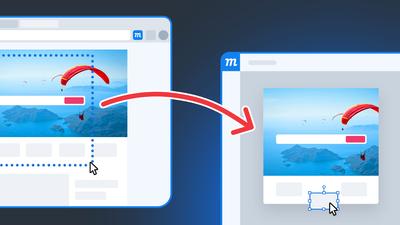
If you aren't quite ready to use our MCP Server, you can still use our Moqups Extension for Chrome or Firefox to bring AI designs and live webpages into Moqups as fully editable layouts.
And whichever way you choose to work with AI, we'd love to hear how it goes. Tell us what's working, what isn't, and what you'd like AI to be able to do in Moqups next – your feedback helps us decide what to build.